0/5000

Free credits for new users

Estimated credits40

Examples
History
Coastal tracking shot

Example prompt based on this clip:Two travelers walk across a windswept headland as waves break below the cliffs. Follow them from behind in one slow tracking shot, starting wide enough to show the coastline. Let the figures fill more of the frame as the camera draws closer, with soft daylight and wind moving through their coats and the grass.

HappyHorse AI Text to Video Generator

Plan your next short film with HappyHorse AI. Start with a one-line prompt describing the scene, action, camera movement, and visual style. Use the example videos to refine your shot.

Open workspace
A winding road follows a grassy cliff above a blue ocean

Text to Video Features with HappyHorse AI

Describe your scene, guide camera movement, and adjust video settings before generating.

Control Prompt Translation

Lite has a prompt translation switch. Leave it enabled when you want the service to translate your description, or turn it off to submit your own phrasing. This is a setting for the prompt itself. It does not add subtitles or translate words already visible in an image or clip.

Open workspace
Describe Scenes and Actions

A prompt can describe a subject, its surroundings, and what changes during the shot. For a storyboard beat, write the movement in order: a kayaker crosses turquoise water and turns near the end of the shot. That gives the clip a beginning and an end, even if it is meant to sit between two shots in a longer edit.

Open workspace

Guide Camera Movement

Name the shot size and one camera movement, such as a close-up that slowly pushes toward a potter’s hands. A locked wide shot can show a moving subject, while a slow pan can reveal a still scene.

Open workspace

Choose Video Aspect Ratios

HappyHorse Lite offers 16:9, 9:16, and Auto. A wide frame leaves room for a subject moving across a landscape; a vertical frame works well when the person or object stays near the center. Set the intended ratio at the start so you can describe where the subject sits and how much of the surroundings should remain in view.

Open workspace

Reuse Seeds to Compare Results

The optional Seed field in Lite accepts whole numbers from 10,000 to 99,999. Reuse a seed when changing one part of the prompt, such as the light or direction of movement, to reduce one source of variation. A seed helps with comparison; it does not guarantee the same framing or a frame-for-frame repeat.

Open workspace

AI Text to Video for Business

Use HappyHorse AI to generate videos from text and streamline production for product marketing, ad testing, and corporate training.

Turn product introductions, marketing copy, and creative scripts into videos. Spend less on filming, sets, and pre-production for product demos, brand videos, and ads.

Turn product descriptions, ad copy, and marketing scripts into videos. Make multiple versions and compare how different ad concepts look.

Choose from aspect ratios such as 16:9, 9:16, and 1:1, depending on the model. Make landscape, vertical, or square videos for YouTube, TikTok, and Instagram.

Turn a written script into a video draft in fewer steps. With less shoot preparation and rework, marketing teams can deliver product promos, ads, and other content sooner.

Matte black over-ear headphones styled on a sandstone plinth under warm golden studio light

How to Use the AI Text to Video Generator

Create a video from text in three steps.

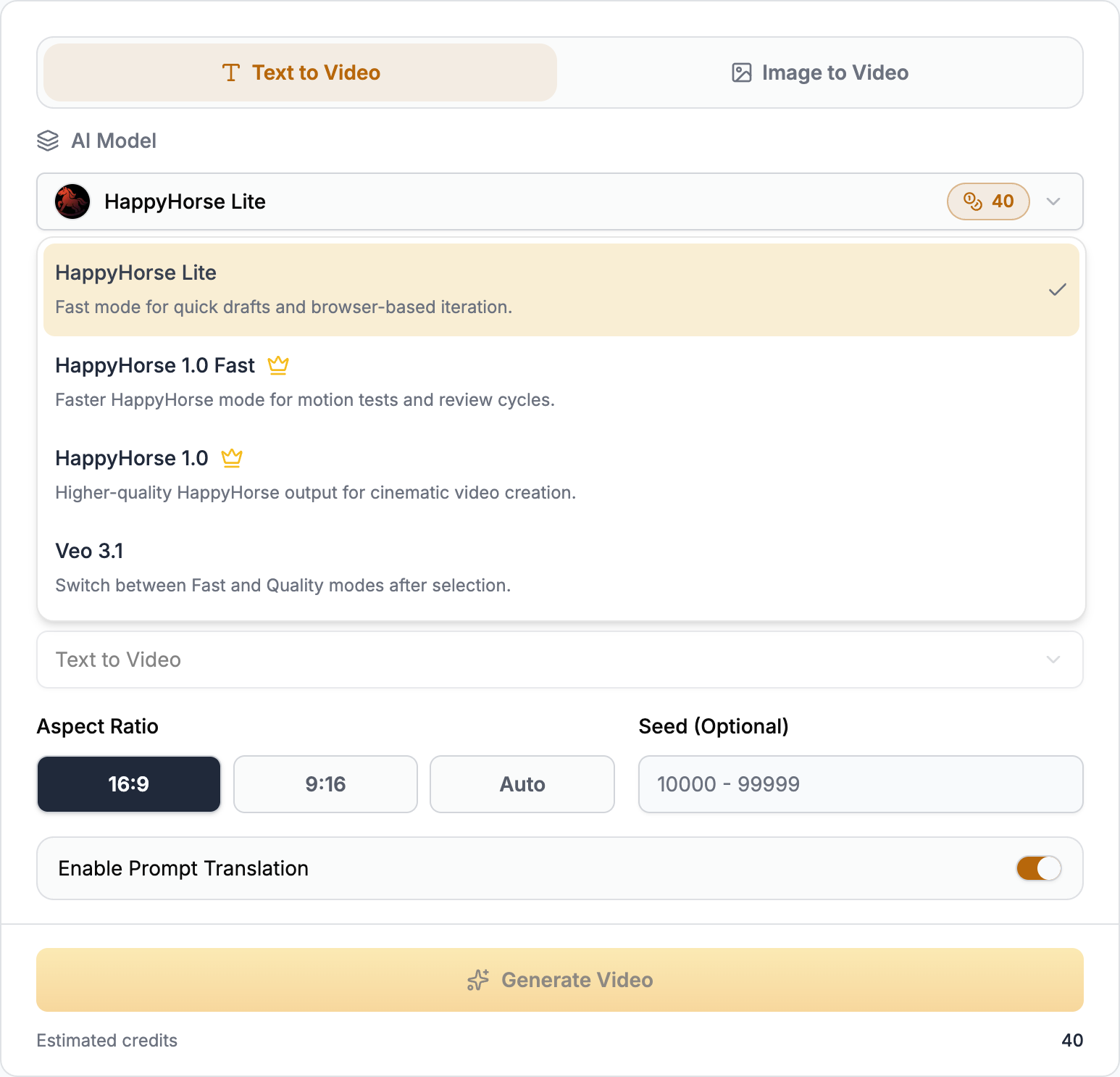
Open the AI Model menu on the left of the workspace. Choose HappyHorse Lite for a quick draft or HappyHorse 1.0 to set the resolution and duration.

In Prompt, describe the subject, action, setting, and camera movement. The example follows a red kayak at sunrise.

With HappyHorse 1.0 selected, set the resolution, aspect ratio, and duration. Check Estimated credits below Generate Video.

The Text to Video model picker listing HappyHorse Lite, HappyHorse 1.0 Fast, HappyHorse 1.0, and Veo 3.1

AI Video Models and Credit Usage

See how video models differ in features and credit costs, and how many videos you can make with each monthly plan.

Video Model Comparison

OptionHappyHorse LiteHappyHorse 1.0 FastHappyHorse 1.0Veo 3.1
Useful forScene draftsShort drafts with set lengthShots that need 1080pFast or Quality mode
Aspect ratio16:9 · 9:16 · Auto6 ratios + Adaptive6 ratios + Adaptive16:9 · 9:16 · Auto
Duration controlPreset4–15 s4–15 sPreset
Resolution controlPreset480p · 720p480p · 720p · 1080pPreset
Estimated credits per clip15243215 / 300

Credit estimates use 4-second, 480p videos for HappyHorse 1.0 Fast and HappyHorse 1.0. HappyHorse Lite and Veo 3.1 use their default settings. Veo 3.1 shows Fast / Quality credits.

Monthly Credits and Video Estimates

Monthly planCredits / monthCredits / Lite clipApprox. clips
Basic5001533
Standard1,1001573
Pro2,40015160

Video estimates are based on HappyHorse Lite at 15 credits per clip. Other models have different credit costs.

View monthly plans

Explore More AI Video Models

A cyclist rides along a rain-soaked, tree-lined street

HappyHorse 1.0 Fast

Try scene motion with adjustable duration, resolution, and aspect ratio.

Sunlight passes through an amber glass sculpture on a stone plinth

HappyHorse 1.0

Create videos at up to 1080p and choose the duration in the workspace.

A yellow tram rounds a sunlit curve on a rain-wet street

Veo 3.1

Generate video from text and switch between Fast and Quality modes in the workspace.

Explore More AI Tools

A red kite rises above coastal dunes

Image to Video

Start with an existing frame and describe how it should move.

A small observatory at the foot of red sandstone hills

Text to Image

Create a key visual or storyboard still from a written description.

Flowering branches cast a shadow behind a ceramic vase

Image to Image

Use an image as a reference when revising its look or composition.

Frequently asked questions

What is the HappyHorse AI text to video generator?

HappyHorse AI is a browser-based text-to-video generator that turns written prompts into short AI videos. Choose a video model, describe your scene, and adjust the available settings to create your video.

What is HappyHorse Lite good for, and how many credits does it cost?

Lite suits short scene drafts and offers 16:9, 9:16, and Auto framing. The default estimate is 15 credits per clip.

Can I edit an existing photo or video here?

This page starts with a text prompt and has no media upload or clip editor. Use Image to Image to revise a still, or Image to Video to start from an existing frame.

What can I do if text on a sign is wrong in my AI video?

Cover the incorrect lettering and add the correct words in a video editor. For a new shot, ask for a blank area in the prompt, then add the exact product name, sign text, or captions during editing.

Why can’t I generate a video after entering a prompt?

Sign in and check that you have enough credits for your selected model and settings. HappyHorse 1.0 Fast and HappyHorse 1.0 require an active subscription. If generation still fails, check the error message and make sure your prompt and settings meet the model’s requirements.

Why can’t I find video length and resolution settings?

HappyHorse Lite and Veo 3.1 use preset duration and resolution. Under AI Model, switch to HappyHorse 1.0 Fast or HappyHorse 1.0 to choose 4–15 seconds and 480p or 720p. Choose HappyHorse 1.0 for 1080p.

Can I write my video prompt in Chinese?

Yes. With HappyHorse Lite selected, you can enter a Chinese prompt and leave prompt translation on. Turn it off if you want to submit the original wording. This setting translates the prompt only.

Will using the same seed produce the same video?

The same seed does not guarantee an identical video. HappyHorse Lite accepts an optional whole number from 10,000 to 99,999. Keep the seed and other settings fixed when comparing changes to your prompt.

Plan Your Next Shot

Bring one scene into the workspace. Pick a model, set the canvas to match where the clip will be seen, and keep the prompt and settings together as you refine the shot.

A filmmaker reviews visual frames in a daylight editing studio