
Framing and Subject Consistency
Start from a still frame and describe how the subject and camera should move. Review the output and refine the prompt if important details change.
Start AnimatingFree credits for new users
Estimated credits40
Sample motion promptGentle camera push-in on a sunlit portrait; fine strands of hair lift softly in a warm breeze while natural eye contact and expression stay steady.
Upload a reference photo or use start and end frames with a supported model. Choose HappyHorse 1.0 or Veo 3.1 and describe the motion you want to create.
Start Animating
Start with a reference image and describe the subject, environment, and camera movement. The videos below illustrate motion styles; results vary by model and prompt.
Start from a still frame and describe how the subject and camera should move. Review the output and refine the prompt if important details change.
Start AnimatingDescribe atmospheric elements, particles, or lighting changes to explore motion from a single source image. Results vary by model and input.
Start AnimatingDescribe rolling waves, reflections, or wind to explore motion in a landscape. Review the output for unwanted changes in the scene.
Start AnimatingUpload both a starting frame and an ending frame to bridge transitions smoothly, or guide sweeping scenic reveals across wide landscapes and architectural shots.
Start AnimatingExplore motion ideas for product visuals, editorial portraits, and concept art using a reference image.
Use a studio product image to explore orbiting camera moves and highlights. Review packaging and text in the generated result.
Describe subtle eye movement, head turns, or wind-swept hair for a portrait. Review the result for changes to facial details.
Upload two frames to control both the opening and closing shot. Smoothly animate day-to-dusk architectural lighting shifts, outfit changes, or camera reveals.
Bring game key art, book covers, and AI illustrations to life with drifting mist, aurora glow, falling rain, and slow cinematic depth push-ins.

Keep one clean Image-to-Video workspace from upload to export — no complex keyframe timelines required.
Select your preferred AI model in the Image-to-Video panel, then drop in 1 reference image (JPG, PNG, WebP) or 2 start-and-end keyframes directly into the upload box.
Describe the motion with a concise formula: [Subject Action] + [Camera Move] + [Ambient Mood]. A prompt is required for the models shown here.
Choose supported image inputs and an aspect ratio, review the credit estimate, and click Generate. Download the result when it is ready.
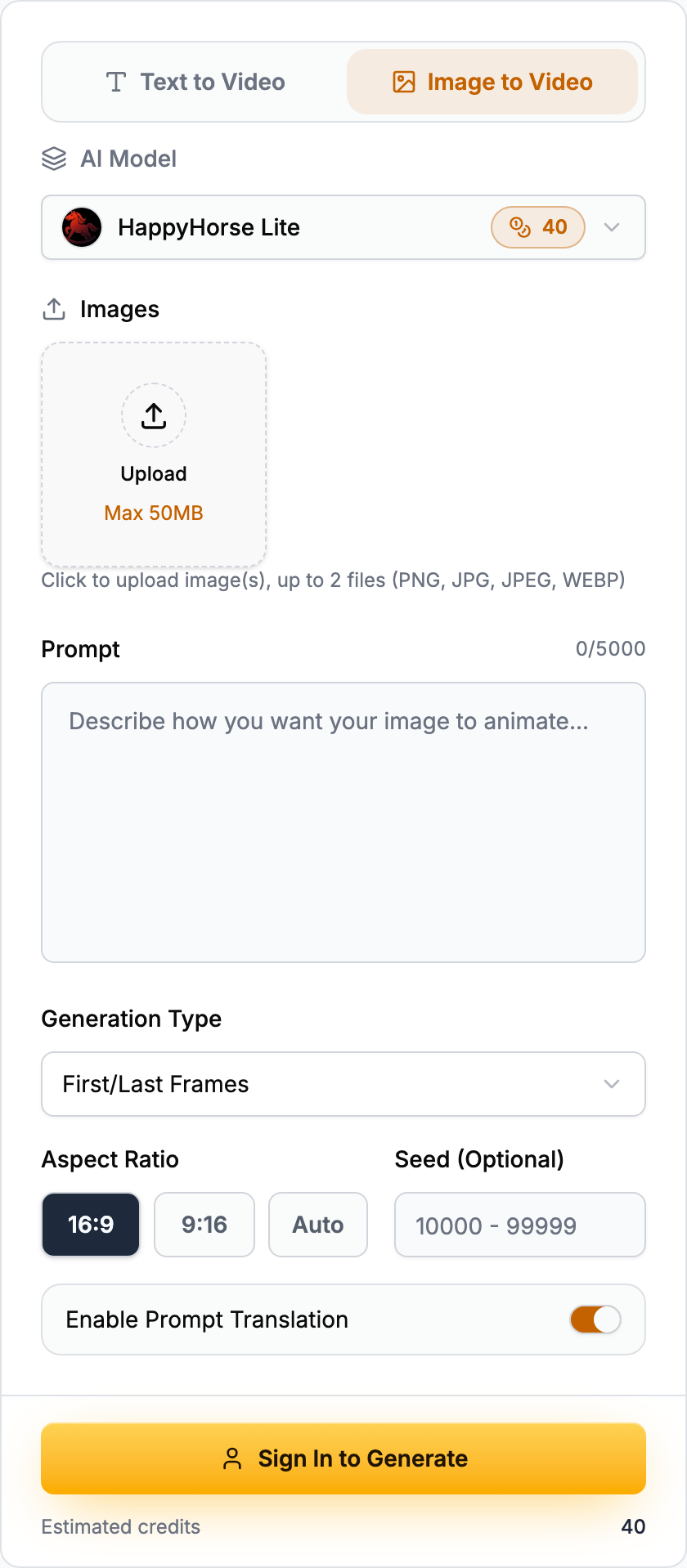
Test the exact same reference photo across multiple video engines in one workspace — match quality and speed to every shot.
| Feature | HappyHorse Lite | HappyHorse 1.0 Fast | HappyHorse 1.0 | Veo 3.1 |
|---|---|---|---|---|
| Input modes | Reference / Keyframes | Reference / Keyframes | Reference / Keyframes | Reference / Keyframes |
| Best use cases | Quick previews & light loops | Rapid camera-angle testing | E-commerce & daily reels | Commercial ads & hero shots |
| Estimated credits (default) | 15 | 24 | 32 | 15 / 300 |
Credit rates reflect live workspace pricing for the default image-to-video preset. Actual cost updates automatically when you change duration or resolution.
| Monthly Plan | Monthly Credits | Credits / Clip | Est. Videos / Mo |
|---|---|---|---|
| Basic | 500 | 15 | 33 |
| Standard | 1,100 | 15 | 73 |
| Pro | 2,400 | 15 | 160 |
Estimates divide each monthly plan’s credits by the default 15-credit clip rate and round down. Switching models or resolutions adjusts the exact count.
View full pricing plans
Rapid turnaround for testing camera moves, pacing, and motion drafts from the same source photo.

Our balanced flagship engine for crisp product contours, natural physics, and reliable frame consistency.

Cinema-grade lighting comprehension and intricate motion detail for hero commercial deliverables.

Generate short videos directly from written scripts and shot prompts with multi-model comparison.

Create crisp product concepts, portraits, and key art from text to feed your image-to-video pipeline.

Restyle, refine, and adjust lighting on existing photos before animating them into motion.
Use a clear source image and describe subtle motion and camera movement. Results can vary, so inspect faces and text before using the clip.
Supported models can use a first and last frame to guide the beginning and end of a clip. Results and available input modes vary by model.
A motion prompt is required for the models shown in this workspace. Describe the subject and the movement you want.
The default estimate is 15 credits. Costs vary by model and settings; check the estimate in the workspace before generating. Trial credits depend on the current offer.
Available ratios depend on the model and include 16:9 and 9:16; some models support 1:1. Review the applicable plan terms, model policies, and rights to your input assets before commercial use.
JPG, PNG, and WebP files are supported. Clean 1080p or 2K stills with clear subject-background separation and minimal compression artifacts yield the most stable motion.
Click Download in the workspace result panel when the video is ready. The returned format and codec depend on the selected model and provider.
For a supported model, try using the same image as the first and last frame and describe continuous motion. Check the result and edit it if the loop is not seamless.
Upload a reference photo or supported keyframes, choose a video model, and describe the motion you want.
