

Write Action and Room to Breathe
Skip stiff keyword lists—say what is happening and what space to leave, like a baker placing sourdough on a wooden counter with sunlit windows and shelves beside it.
Try the Text to Image GeneratorEstimated credits3
 Sage ceramic teapot
Prompt behind this image:A small matte sage-green ceramic teapot with a curved spout and round lid on warm cream linen. Soft diagonal window light enters from the upper left, clean studio product photography in a quiet cream-and-sage palette.
Describe what you want to see and generate it with GPT Image 2 or Seedream 5.5 in HappyHorse AI. Pick your aspect ratio, scale up to 4K, and see the exact credit cost before you run a prompt.
Try the Text to Image Generator
Control subject action, lighting, on-image text, aspect ratio, and resolution in one workspace.
Skip stiff keyword lists—say what is happening and what space to leave, like a baker placing sourdough on a wooden counter with sunlit windows and shelves beside it.
Try the Text to Image Generator
Lighting shapes the shot faster than adjectives. Describe soft side lighting from the left on a black-and-white cyclist portrait against a charcoal backdrop.
Try the Text to Image Generator
Put exact words in quotes and say where they sit—such as a cream sign reading “ORANGE BLOOM” in the center of a florist window. Check spelling once it renders.
Try the Text to Image Generator
Switch between 1:1 square, 9:16 vertical, and 16:9 widescreen, then compose for it—like centering a hiker along a winding fern-lined path for a tall cover.
Try the Text to Image Generator
Both models support 1K and 2K. GPT Image 2 reaches 4K on non-square ratios, while Seedream 5.5 adds a 1.5K option. Credit estimates update live as you switch.
Try the Text to Image GeneratorFrom campaign concepts and social covers to storyboards and editorial art, teams can draft usable visuals before booking a shoot.
Test props and color direction in seconds—pair a saffron glass jar on pale stone with a burnt-orange backdrop and a tight spotlight.
Get everyone on the same page before filming—describe a greenhouse at dawn, a figure in red at the entrance, and how far back the camera sits.
Turn a written scene into a candid visual, like a flower vendor sorting orange tulips under a market awning in early morning light.

Pick a model, write your prompt, and choose the output size.
Choose GPT Image 2 or Seedream 5.5 in the AI Model menu. Each supports different aspect ratios and resolution caps.
Describe the subject, setting, light, and framing—or click Use this prompt on an example to tweak a ready-made starting point.
Pick your aspect ratio and resolution, check the estimated credits, sign in to generate, and download the finished image.
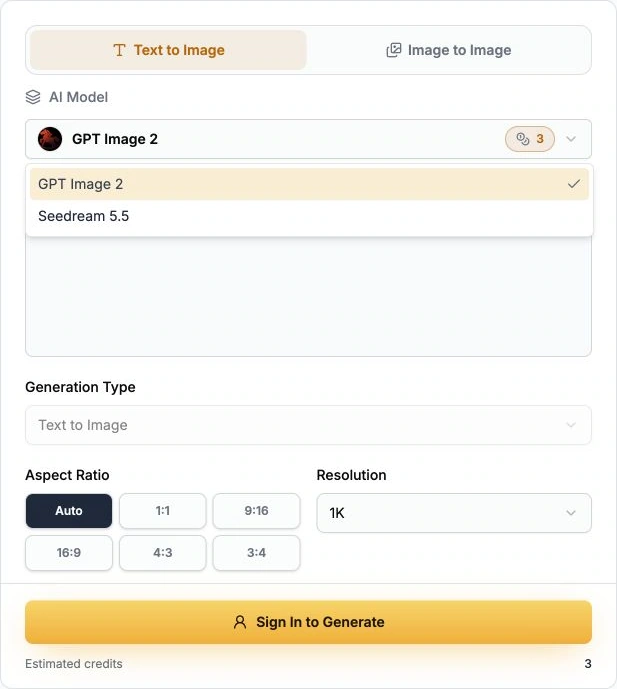
Compare supported ratios, resolution caps, prompt limits, and roughly how many 1K images each monthly plan covers.
| Spec | GPT Image 2 | Seedream 5.5 |
|---|---|---|
| Aspect ratios | Auto · 1:1 · 9:16 · 16:9 · 4:3 · 3:4 | Auto · 1:1 · 9:16 · 16:9 · 4:3 · 3:4 · 3:2 · 2:3 · 2:1 · 1:2 · 21:9 |
| Resolutions | 1K · 2K · 4K (4K unavailable at 1:1) | 1K · 1.5K · 2K |
| Prompt limit | 20 000 characters | 4 000 characters |
| Est. credits per 1K image | 3 | 3 |
Estimates assume a text-only prompt at 1K with Auto aspect ratio. The workspace updates the exact credit cost live as you change settings.
| Monthly plan | Credits / month | Credits / 1K image | Approx. images |
|---|---|---|---|
| Basic | 500 | 3 | 166 |
| Standard | 1 100 | 3 | 366 |
| Pro | 2 400 | 3 | 800 |
Estimated using GPT Image 2 at 3 credits per 1K image. Choosing 2K or 4K uses more credits.
View monthly plansYes. The HappyHorse AI Text to Image generator creates new images solely from written prompts using GPT Image 2 or Seedream 5.5. To edit a photo you already have, switch to Image to Image.
GPT Image 2 goes up to 4K on supported non-square aspect ratios and handles complex prompts well, while Seedream 5.5 caps at 2K (1K, 1.5K, 2K) but gives you 11 aspect ratios including 3:2, 2:3, and 21:9. Both generate images directly from text.
You can browse examples, write prompts, and check live credit estimates before signing in. Generating and downloading images requires a HappyHorse AI account with enough credits.
Stick to Subject + Setting + Lighting/Style. Specific details—like a dark sweater, soft left side lighting, and a charcoal studio backdrop—give much steadier results than a couple of vague words.
Pick 9:16 for portrait or 16:9 for landscape in the Aspect Ratio menu; both GPT Image 2 and Seedream 5.5 support them. Mention subject placement or open space for text in your prompt if needed.
Yes, for short phrases. Put the exact words in quotation marks and state where they belong, like on a shop sign or book cover. Check spelling after rendering, and use a design editor for longer copy.
Only GPT Image 2 supports 4K, and 4K is disabled when 1:1 square is selected. Seedream 5.5 offers 1K, 1.5K, and 2K. The Resolution menu only shows sizes supported by your active model and ratio.
Download new results straight from the workspace. For past runs, sign in and open History to see your saved images in My Creations.
AI image generation uses randomized sampling on every run, so each output is a new variation. Keep the model, aspect ratio, and core prompt fixed when comparing results, and tweak one detail at a time.
Yes. Download your image and upload it to HappyHorse AI Image to Image for edits, or to Image to Video to add camera movement and motion.
Write a prompt, pick your model and size, and download ready-to-use images in seconds.


