

Swap in a Scene-Ready Background
Move a plain-backdrop product shot straight into a campaign setting. Specify the surface, background tone, and shadow direction while keeping the product intact.
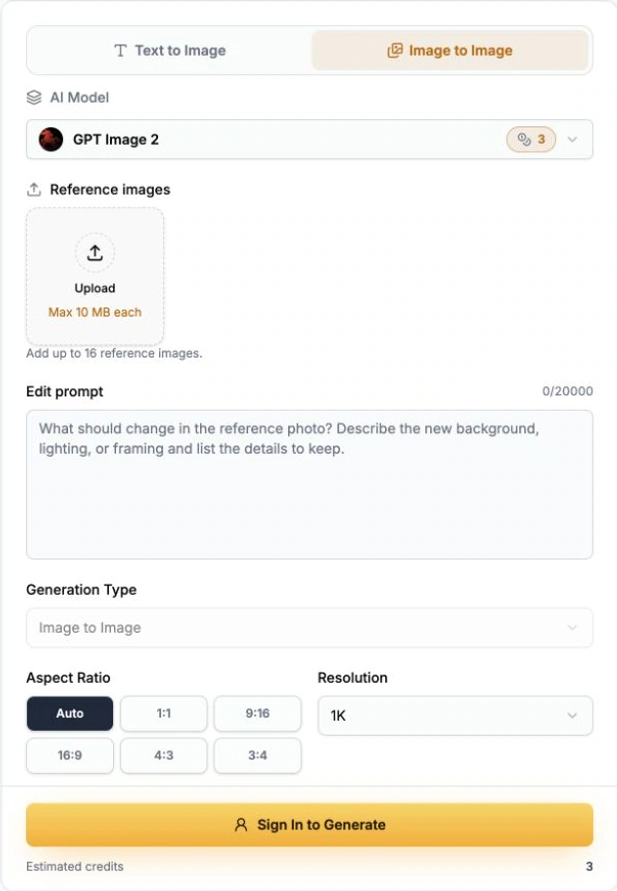
Edit an ImageEstimated credits3


Edit promptReplace the white backdrop with wine-red velvet and dark red stone. Keep the bottle, black cap, blank label, and camera angle. Add warm side light.
Upload a reference photo and tell HappyHorse AI what to change. Swap backgrounds, adjust lighting, or reframe your shot—and see the credit cost before you generate.
Edit an Image
Start from a photo that already has the subject or layout you want—say what should change and what needs to stay.
Move a plain-backdrop product shot straight into a campaign setting. Specify the surface, background tone, and shadow direction while keeping the product intact.
Edit an Image
Test warm side light, soft overcast daylight, or a darker studio setup. Call out where the light enters so you can compare results side by side.
Edit an Image
Keep the subject from image 1, pull the backdrop from image 2, and match the lighting from image 3. Refer to them in upload order for cleaner blending.
Edit an Image
Call out silhouettes, stitching, or ring prongs that cannot drift. Compare the finished edit against your source photo before publishing.
Edit an Image
Pick 1:1 for product tiles, 9:16 for vertical covers, or 16:9 for wide banners—then specify where the subject sits and how much copy space to leave.
Make this a 9:16 cover. Keep both wheels in frame and leave the upper wall clear for a headline.
Edit an ImageWhen you already have product shots or location photos, marketing, design, and production teams can test new sets, lighting, and crops without a reshoot.
Place catalog products into seasonal scenes without booking a new studio day. Check silhouette, finish, and labels against the original before listing.
Test new backdrops or softer lighting from a single headshot while keeping the original angle—ideal for unifying team photos. Check facial details and glasses afterward.
Preview wall paint, drapes, and fabrics on photos of the actual room. Lock in windows, furniture placement, and sight lines for clear client comparisons.

Upload a reference, describe the edit, and pick your output size.
Pick a model in the workspace and upload a clear source photo—or load an example reference to test.
Lead with the edit, then name what stays fixed. For a perfume backdrop swap, describe the new stone and light while keeping the bottle and cap.
Pick an aspect ratio and resolution, check the estimated credits, sign in to generate, and download the finished image.
Compare reference limits, resolution caps, prompt limits, and estimated 1K edit credits across supported models.
| Spec | GPT Image 2 | Seedream 5.5 |
|---|---|---|
| Maximum reference images | 16 | 10 |
| Aspect ratios | Auto · 1:1 · 9:16 · 16:9 · 4:3 · 3:4 | Auto · 1:1 · 9:16 · 16:9 · 4:3 · 3:4 · 3:2 · 2:3 · 2:1 · 1:2 · 21:9 |
| Resolution options | 1K · 2K · 4K (4K unavailable at 1:1) | 1K · 1.5K · 2K |
| Prompt limit | 20,000 characters | 4,000 characters |
| Estimated credits at 1K with 1 reference | 3 | 4 |
Uploads are limited to 10 MB per image. Estimates assume 1 reference image, Auto aspect ratio, and 1K output; Seedream 5.5 adds 1 credit per extra reference. The workspace updates the exact cost live.
| Monthly plan | Included credits | Credits per 1K edit | Approx. edits |
|---|---|---|---|
| Basic | 500 | 3 | 166 |
| Standard | 1,100 | 3 | 366 |
| Pro | 2,400 | 3 | 800 |
Estimated using GPT Image 2 with 1 reference at 1K and 3 credits per edit. Selecting 2K or 4K uses more credits.
See monthly plans
Supports up to 16 references and 1K, 2K, or 4K output on compatible non-square ratios—ideal for multi-angle product shoots and high-res assets.

Supports up to 10 references and 11 framing options including Auto, with 1K, 1.5K, and 2K output.
Upload at least 1 reference image, describe what to change and what to keep, pick a model, set your aspect ratio and resolution, and sign in to generate.
Yes. Specify the new background surface and lighting in your prompt while asking the model to keep the original product shape, color, label, and camera angle. Verify details against the source before publishing a listing.
GPT Image 2 accepts up to 16 reference images, and Seedream 5.5 accepts up to 10. Each image can be up to 10 MB in JPEG, PNG, or WebP format.
Assign a clear role to each image in upload order—for example, asking for the bottle from image 1, the backdrop from image 2, and the left side lighting from image 3 so instructions do not conflict.
Not always identically, since the generator resamples and creates a new image. Keep edits narrow, explicitly name the face, logo, or text to preserve, and compare against the original before publishing.
Only GPT Image 2 supports 4K output, and 4K is disabled when 1:1 square is selected. Seedream 5.5 offers 1K, 1.5K, and 2K. Switch the aspect ratio or model to see available resolutions.
HappyHorse AI requires sign-in and charges credits per generation, with live estimates shown before you run a job. Seedream 5.5 also adds 1 credit per additional reference image.
Restart from the original reference and request one change at a time. Explicitly lock elements like the crop, camera angle, and product silhouette in your prompt.
Click Download directly on the result in the workspace, or sign in and open History to access saved edits in My Creations.
Start from a photo you already have, describe the change, and download a production-ready edit in seconds with HappyHorse AI.


